Someone asks for an MP3, but your iPhone voice memo is an M4A. Here is how to convert voice memo to MP3 on the phone itself: export the file, convert it, then share the result.
Quick answer: Save the memo to the Files app from the share button, run it through a browser-based converter or an audio converter app with MP3 as the output, then send the MP3 with Mail. No computer is needed unless the phone route fails.
If you are still deciding how to record in the first place, the audio tools hub covers the best audio recording app for iphone and other options. The steps below are ordered from the simplest route to the fallbacks.
What Voice Memos saves and why it is M4A
Voice Memos saves each recording as an .m4a file inside the app, according to the ParrotNotes converter guide. The same format applies on the Mac, since ScreenApp notes that Apple Voice Memos saves recordings as m4a on iPhone and Mac. An older 2011 post on iPhone memo conversion says the same thing: the default recording format is M4A.
The practical reason it stays M4A is that the file your iPhone makes is already compact and good quality, and most modern phones play it. The trade-off is compatibility. MP3 wins there: old car stereos, Windows media players, email attachments, CRM uploads and audio editors all take MP3. The 2011 post also calls M4A “not an easily manipulable format”, which is why people convert before editing.
Convert only when the recipient or the software needs MP3. If they use a recent phone, the original M4A is a perfectly reasonable file to send. For a fuller comparison of the formats, see mp3 vs m4a vs wav.
Export the memo to the Files app
Start by getting the M4A out of the Voice Memos library and into the Files app, because most converters pick up their input from Files. This takes under a minute for a short recording.
- Open Voice Memos and tap the recording you want to convert.
- Tap the share button. On some layouts the same option sits behind the three-dot menu, then Share.
- Choose Save to Files and pick a location you will remember, such as a folder on the phone.
- Open the Files app and confirm the .m4a file is listed there before moving on.
If the recording has a long silence at the start or a section you do not want, cut it before exporting. The guide on how to trim audio on iphone walks through that, and a shorter file is quicker to convert and send.
Convert the file without installing an app
Yes, you can convert without installing anything. A browser-based converter works on the phone and keeps the file on the device. The ParrotNotes tool states that the recording is not uploaded: your browser decodes and re-encodes it on your device. That matters if the memo is a private conversation.
- Open the converter in your phone browser.
- Select the file from the Files app. The ParrotNotes converter accepts M4A, AAC, MP4, WAV, OGG, WEBM, FLAC, OPUS or MP3, up to 100 MB and 30 minutes.
- Set the output to MP3. Leave the bitrate on its default unless the next section gives you a reason to change it.
- Run the conversion and save the finished MP3 back into Files.
Other web converters follow the same pattern. Online Audio Converter says it works with over 300 different file formats, so an odd input file is rarely a blocker.
If you prefer an installed audio converter app, the sequence is the same: load the M4A from Files, choose MP3 as the output, pick a bitrate and export. An app suits you if you convert often or want to avoid reopening a web page each time. A browser tool suits a one-off conversion.
Choose an MP3 bitrate for voice
Converting does not make a recording sound better. The M4A is already compact and good quality, and the converter decodes and re-encodes the audio, so the bitrate you pick sets how the MP3 sounds and how large it is. For spoken memos, the default is enough.
| Bitrate | What the converter says | Planning use |
|---|---|---|
| 96 kbps | Offered as the lowest option | Use only if file size matters more than anything else, and listen to the result before sending. |
| 128 kbps | The default; sounds fine for speech | Best starting point for interviews, notes and lectures. |
| 192 kbps | Suggested if the recording has music or you plan to edit it | Choose for memos with background music or files headed to an editor. |
| 320 kbps | Offered as the highest option, with the same suggestion as 192 | Reserve for music or heavy editing; it is not needed for plain speech. |
These options and suggestions come from the ParrotNotes converter page, so another converter may list different choices.
For everyday memos, stay on 128 kbps. Move up only when the recording contains music or when you will edit it afterwards and want more headroom. A higher setting on plain speech gives you a larger file without a clear benefit.
Share the MP3 by email or message
Once the MP3 is in Files, share it the way you shared the original memo. Open the file, tap the share button and choose Mail in the share sheet. The ParrotNotes guide describes sending the memo to yourself this way, which is a good test before you email a client or colleague.
MP3 is the safer attachment because email attachments, CRM uploads and Windows media players all take it. If a recipient says they cannot open the file, check that you attached the converted MP3 and not the original M4A.
When the phone route is not enough
Escalate to a computer if the phone converter refuses the file, stalls on a long recording or you want to batch several memos. Memos from the Mac are M4A too, so the same conversion applies there. The 2011 post covered converting iPhone memos to MP3 or WAV in iTunes on a computer, which shows the desktop route has long been an option.
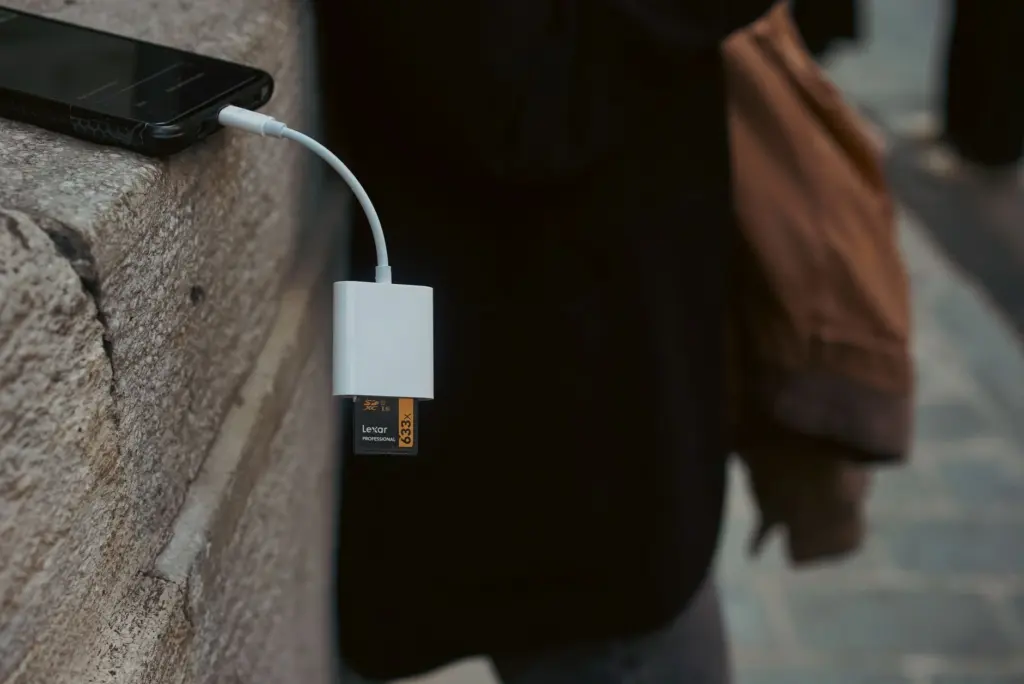
Move the M4A to the computer first. Use the share sheet to send it to yourself by Mail, or connect the phone with a cable and copy the file in the desktop file manager. Convert it there, then send the MP3 from the computer.
Checkpoints and when to stop
Check each stage before moving to the next, so you know where a problem started.
- After export: the .m4a file should appear in Files. If it does not, repeat the share step and choose Save to Files again.
- After conversion: the new file should end in .mp3 and play on your phone. If it ends in .m4a, the output was not changed to MP3.
- Before sending: play the first few seconds. If speech sounds poor, convert again at the next bitrate up from the table above.
- After sending: email it to yourself first and open the attachment. If it plays there, the recipient can open it too.
Stop escalating once the MP3 plays and opens from a test email. If a web converter hits its file limit, switch to a computer or a different tool rather than retrying the same upload. If the original memo is long, trimming it first may bring it within a limit.
Frequently asked questions
Can I convert several voice memos at once?
Yes, with some converters. Online Audio Converter says it can convert multiple files simultaneously in a batch and save them in a ZIP archive. A phone browser tool that handles one file at a time means repeating the steps for each memo.
Is there a file size limit on web converters?
It depends on the tool. The ParrotNotes converter accepts up to 100 MB and 30 minutes, while the FreeConvert audio converter lists a maximum file size of 1GB, with an upgrade for more. Check the limit on the converter you choose before uploading a long recording.
Do Mac Voice Memos need the same conversion?
Yes. Apple Voice Memos saves recordings as m4a on both iPhone and Mac, so a memo from either device can go through the same export and conversion steps.
Why use Files instead of sending the memo straight from Voice Memos?
Saving to Files puts the M4A where converters can select it and keeps a copy you can check afterwards. The converted MP3 then sits beside the original, so you can compare the two before sending.