
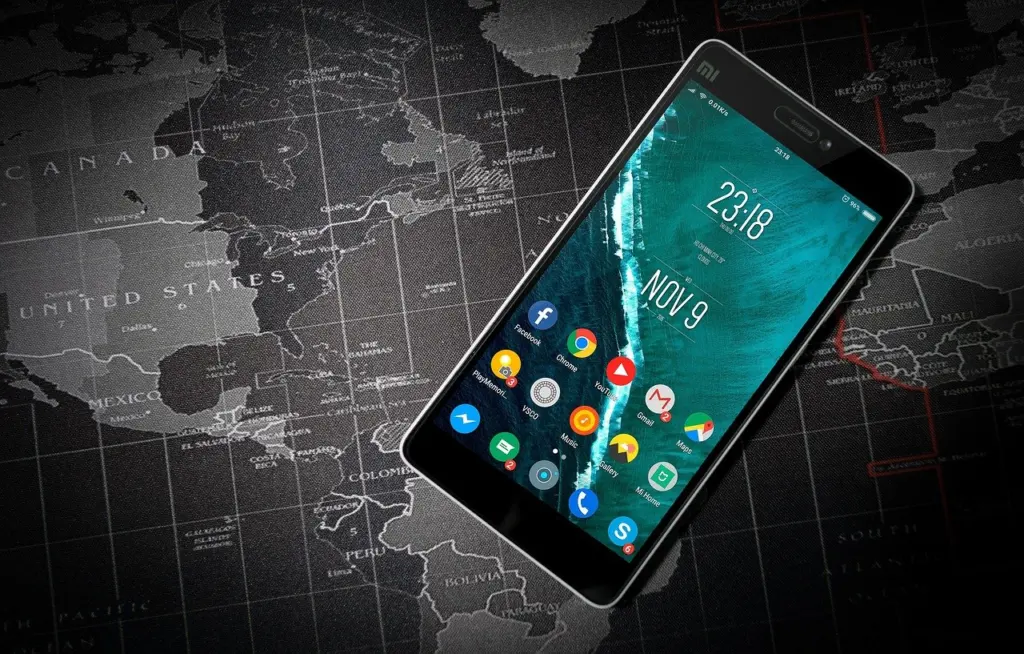
This is how to add sound to a photo on Android: record your audio, combine it with the picture in a video editor, then save and share the result as a video. The exact buttons depend on your phone maker.
The finished file is a short video, so it plays anywhere videos play. For the wider picture of sound-and-image formats, see our guide to photos with sound. Apple users can follow how to add sound to a photo on iphone instead.
What you need before you start
You need a photo, a piece of audio and an editor that can put them on one timeline. Gather all three first, because switching between apps mid-edit is where most people lose their work.
- A finished photo. Choose the picture before you open an editor, so you can import it straight onto the timeline.
- Your audio. This can be a voice note from the phone’s recorder app or a music track. A short recording is easier to match to a single still image.
- A video editor. Samsung Galaxy phones have an editor inside the Gallery app. On other Android phones, install an editor from the Google Play Store.
- A little patience. Samsung’s Gallery editor needs a few minutes to render the saved copy, so do not close the app while it works.
The expected outcome is one video file that shows your photo while your sound plays. Samsung’s music route is documented step by step by wikiHow, and the other editors below follow the same pattern.
Adding sound to a photo, step by step
Step 1: Choose your route
Pick the Gallery editor if you own a Samsung Galaxy and want music behind a clip. Pick a Play Store editor if your phone’s gallery has no audio option, or if you want to use your own voice recording.
The recorder-plus-editor route suits almost everyone else. You record first, then let the editor handle the picture and the sound together. The choice mostly comes down to whether your gallery app already includes an audio button.
Step 2: Record the audio
Open the phone’s voice recorder app and record your message in a quiet room. Hold the phone steady, speak toward the microphone and stop the recording as soon as you finish. Play it back once before moving on, because re-recording is quicker than fixing a muffled clip inside an editor.
Give the file a name you will recognise, such as the occasion or the person it is for. Editors list audio files by name and date, and a clear name saves time when you import it.
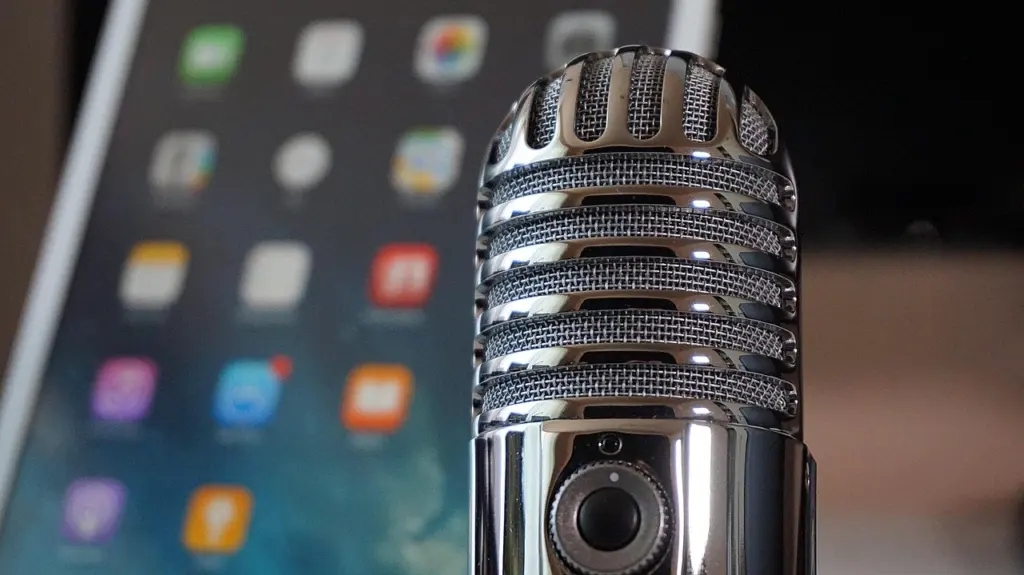
Step 3: Combine the photo and audio in an editor
Open your chosen editor and start a new project with your photo. Then add your recording as an audio track under the picture. Editors built for adding music to video are the right starting point, but check that yours lets you import your own recording rather than offering only stock tracks.
If you use a Samsung Galaxy, the Gallery route works on a video: open the clip, tap Edit (the pencil icon), tap the volume icon, then tap Add background music, as wikiHow explains. A still photo therefore needs to be a video first, which is why a video editor app is the more flexible choice.
Stretch the picture so it lasts as long as the audio. If the image ends before the sound does, the video will cut off your recording.
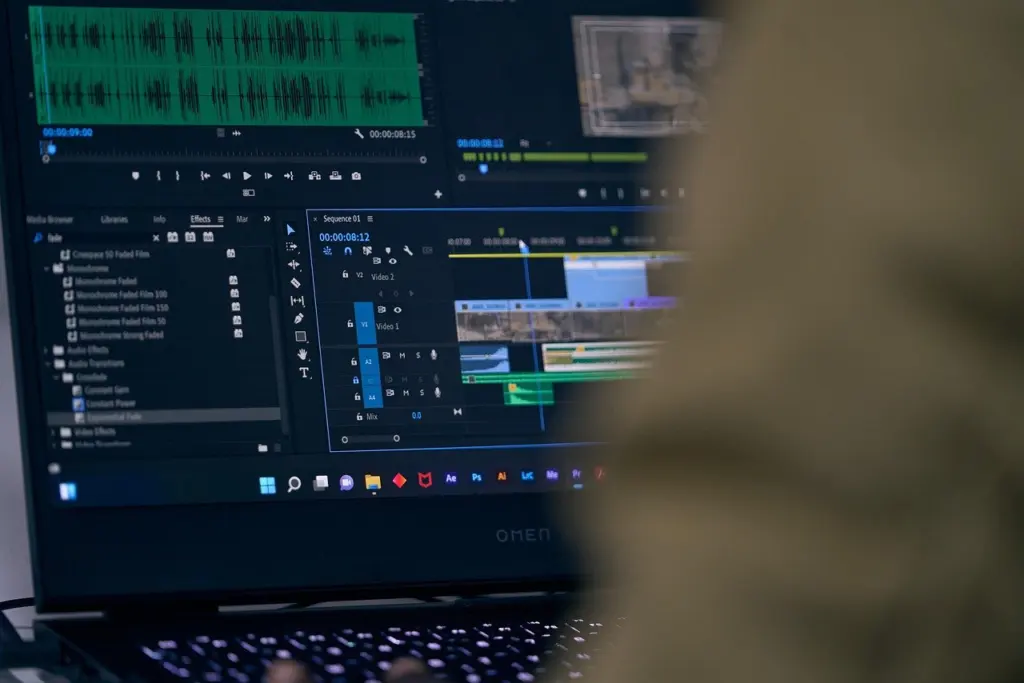
Step 4: Balance the volume
Samsung’s Gallery editor gives you two sliders. The one labelled Soundtracks controls the background music, and the Video volume slider controls the original sound of the clip. A photo has no original sound of its own, so keep your attention on the Soundtracks slider.
Play the preview from the start and listen to the whole thing. Raise the level if the voice is hard to hear, and lower it if the audio sounds harsh. Other editors label the controls differently, but the aim is the same: speech or music that is clear without distortion.
Step 5: Save the finished video
In the Gallery editor, tap Save as copy in the upper-right corner. This stores the edited video as a separate copy, so the clip you started with stays as it was.
In CapCut, the Upload button saves a copy to the phone before it offers sharing options, again according to wikiHow. Whichever editor you use, wait for the export to finish and then play the saved file from the gallery to confirm that picture and sound both come through.
Step 6: Send it
Open the saved video in your gallery and tap the share icon to see the apps on your phone. Choose your messaging app, pick the contact and send it as you would any other video.
CapCut also lists TikTok, Instagram, YouTube and Facebook after saving, which suits public posting more than a private message. If a chat app struggles with the file, send the saved copy from the gallery instead of from inside the editor.
Free editor apps compared
Several free apps can combine a photo and a recording, and they differ mainly in export limits and extras. Choose by what you need from the finished file, not by feature count.
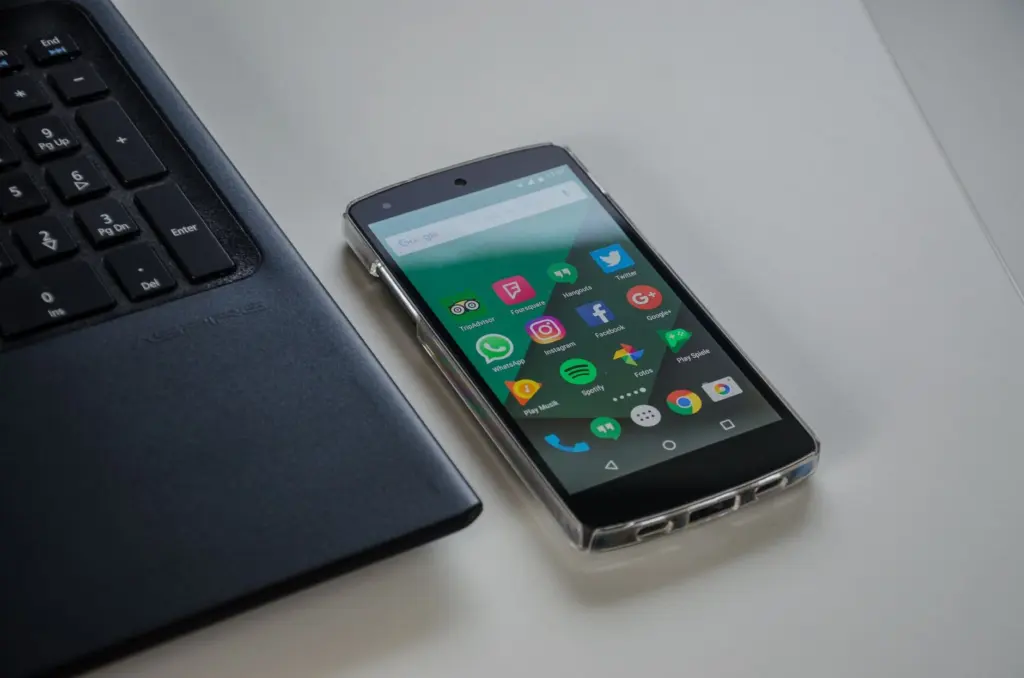
| Option | What it offers | Planning use |
|---|---|---|
| Samsung Gallery editor | Built into Galaxy phones; Add background music button in the video editor; Save as copy | Best for music over a clip if you own a Samsung and want no extra install |
| CapCut | Installed from the Google Play Store; upload options for TikTok, Instagram, YouTube and Facebook | Suits sharing straight to social apps |
| PowerDirector | Free version edits video up to 720p with a watermark | Fine for casual clips if a watermark does not matter |
| VideoShow | Exports at 480P or 720P | Pick 720P when the picture will be viewed on a full phone screen |
| VivaVideo | Android app with over 200 special effects, per a third-party article | Worth a look if you want effects as well as sound |
Figures come from wikiHow’s Samsung music guide and Media.io’s photo-and-audio tips.
For a plain photo-plus-voice clip, effects count for little, so judge the apps by export quality and by whether the free version marks your video. Try one app before installing several.

What differs between phone makers
Built-in support depends on the maker. Samsung Galaxy’s Gallery editor can add background music to a video, which makes it the clearest built-in route. Other makers’ gallery apps may use different menus or leave audio out, so open the editing tools on your phone before assuming a button exists.
Motion-capture camera modes also differ from brand to brand, so check your camera app rather than expecting the same feature everywhere. A recorder-plus-editor route avoids that problem, because it relies on apps rather than on one maker’s camera.
If you are weighing Android against Apple’s built-in photo motion, our comparison of live photos vs photos with sound sets out the differences.
Frequently asked questions
Can I add sound to a photo without installing an app?
Yes, a free web service at Add Music to Photo accepts an image up to 25 MB and an MP3 up to 100 MB. Your recording needs to be an MP3 to use it.
How do I install a video editor on Android?
Open the Google Play Store, search for the editor by name, for example CapCut, and tap Install. Once it finishes, open the app and start a new project with your photo.
How long does Samsung’s Save as copy take?
Allow a few minutes for rendering after you tap Save as copy. Stay in the app until the saved video appears in your gallery.