| Symptom | First action | Planning use |
|---|---|---|
| Photo is blurry at close range | Move the phone farther from the subject | Try this before touching any setting. It costs nothing and fixes the most obvious cause. |
| Focus lands on the wrong part of the subject | Hold a finger on the subject until AE/AF Lock appears | Use it whenever the detail you care about is small, such as a petal edge or flower centre. |
| Phone switches lenses when you do not want it to | Check Settings > Camera > Macro Control | Applies to iPhones with automatic macro switching. Decide before you start shooting. |
| Image shakes outdoors in wind | Block the wind from its direction | Shield the stem first, then worry about the phone. |
| Shots look too bright and lose detail | Move to shade, or shoot early morning or late afternoon | Direct sun is the condition to avoid for flowers. |
The steps above follow MacPaw’s iPhone macro guide and iPhone Photography School’s macro tutorial.
Here is how to take macro photos with phone cameras: move in close, tap the detail you want sharp, and keep the phone steady in soft light. Most close-range failures come from distance, focus or shake.
This guide treats flowers as the worked subject and fixes problems in the order you are likely to meet them. For the wider skills behind it, see how to take better photos with your phone.
Why macro focus fails at close range
A close-up lens can only focus within a limited range, and autofocus has very little room to work once the subject is a few centimetres away. Most “macro mode not focusing” complaints come from one of three causes: distance, a focus point on the wrong detail, or the wrong lens being active.
Too close to the subject
If the picture is blurry, the phone is usually closer than the active lens can handle. MacPaw’s iPhone guide gives the plain remedy: move your phone farther away from your subject. Back off slowly while watching the screen until the detail snaps into focus, then stay at that distance rather than creeping closer again.
Autofocus picking the wrong detail
At macro range, autofocus will often skip right past the detail you care about. The phone is not broken. It is simply choosing a different part of a scene where every millimetre of depth matters.
- Lock focus deliberately. Hold your finger on the main subject until AE/AF Lock appears, as MacPaw describes, so the phone stops re-deciding between frames.
- Tap the part that matters. iPhone Photography School taps the screen on the chosen part of the subject, in its example a sprig of lavender, until that part is in focus.
- Then adjust distance, not settings. The same tutorial advises moving the camera until the part you want is perfectly focused.
The wrong lens or Macro Control setting
On supported iPhones, the ultra-wide lens switches to macro automatically when you are close to a subject. That answers whether the ultra-wide camera handles macro on newer phones: on these iPhones it does. MacPaw lists the iPhone 16 (all models) and the iPhone 12, 14, and 15 Pro and Pro Max as the models that support it. If your iPhone is not on that list, a clip-on lens is the practical alternative.
Macro Control is switched on under Settings > Camera > Macro Control. If the image jumps between lenses as you frame the shot, that automatic switching is the likely cause, and the setting is the first place to check.
Photographing flowers with a phone
Flowers reward patience more than equipment. Soft light and a deliberate focus point matter more than any accessory, and both are free.
Choose soft natural light
iPhone Photography School says macro work is at its best early morning or late afternoon, where it is shady. It also warns that direct sunlight makes the shot come out really bright. OPPO’s macro tips take the same view from a manufacturer’s side, saying it prefers cloudy or rainy days for the soft light. MacPaw adds that natural light helps bring out fine textures and details.
The practical choice is simple. If the garden is in harsh sun, wait, or shade the flower with your own body. A cloudy day is not a reason to stay indoors.
Frame and focus on one detail
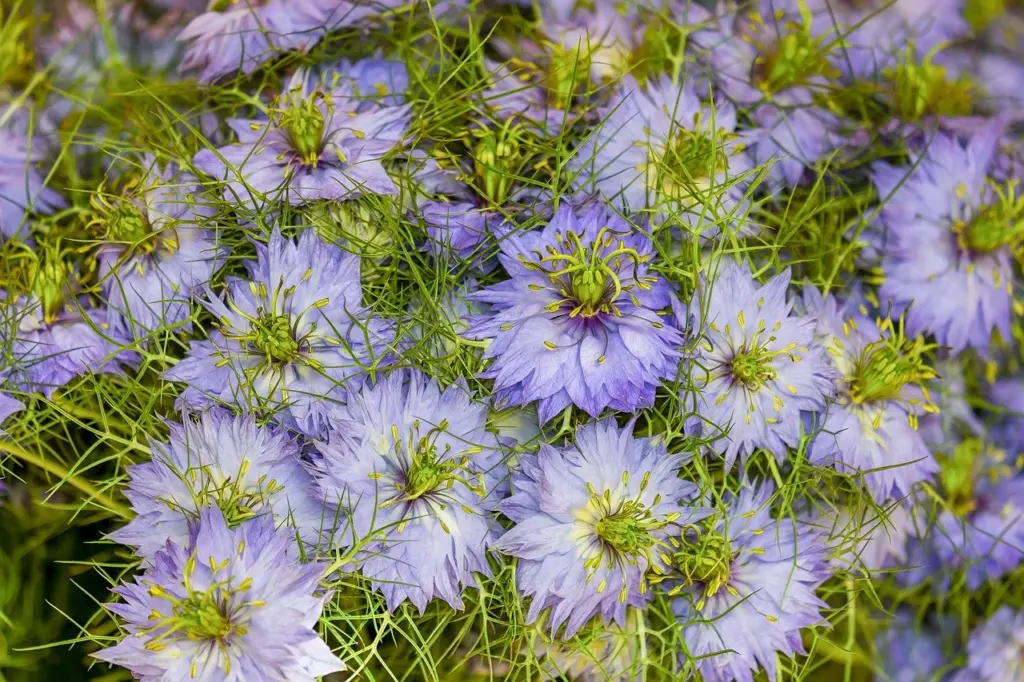
Pick a single part of the bloom before you raise the phone, whether that is the centre, one petal edge or a bead of water. Tap that spot, check it is sharp on screen, and adjust the distance slightly until it is. This is the same tap-then-adjust routine described earlier, applied to a subject that rarely stays still.
Stopping shake and blur
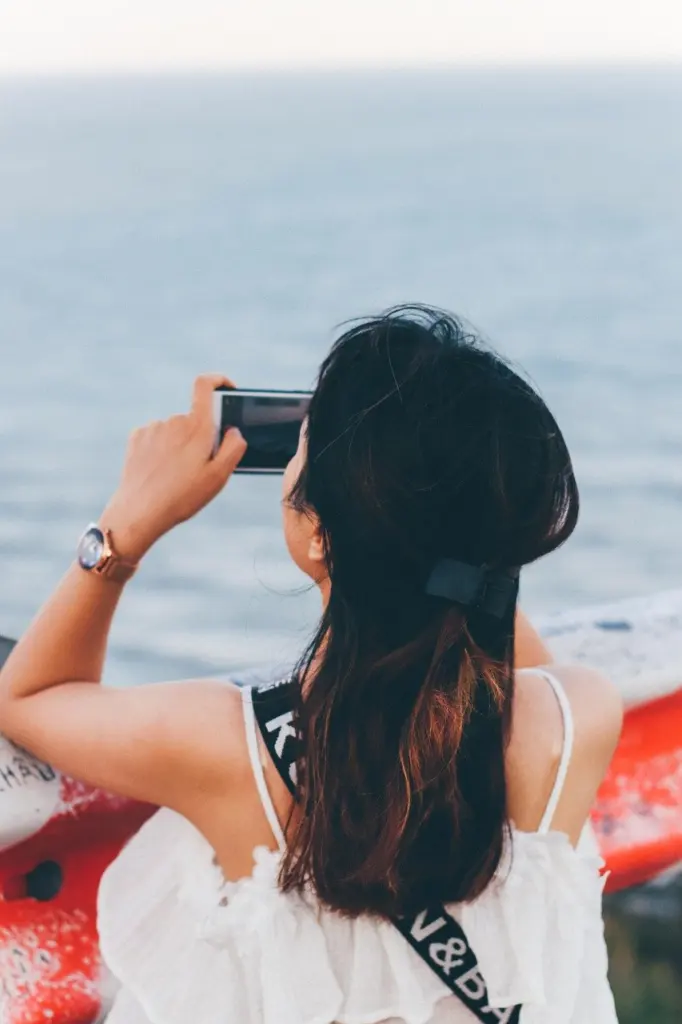
At this range a tiny movement of the phone or the stem changes what is in focus. Reduce movement at the source before you blame the lens.
- Support the phone. One macro walkthrough advises using a tripod or a stable surface to prevent blurriness. iPhone Photography School frames a tripod as the answer if you have really shaky hands, so it is optional for steady shooters and worth having if your results are soft.
- Use the self-timer. The same walkthrough recommends the self-timer so that pressing the shutter button does not shake the camera.
- Block the wind. If it is windy, or the iPhone keeps shaking, iPhone Photography School suggests blocking the wind from the direction it is coming.
- Raise the shutter speed where you can. ShiftCam’s macro guide suggests 1/120 to 1/250 s in good light. This applies only if your camera app lets you set shutter speed, and it is a good-light figure, not a rule for dim scenes.
Are clip-on macro lenses worth buying?
They are worth it when your phone has no dedicated macro mode. One macro guide says that if your phone lacks it, consider investing in a clip-on macro lens. If your phone already has a working macro mode, fix focus and light first, because those cause more disappointment than the lens does.
Working distance is the other reason to consider one. ShiftCam notes that a phone’s native macro forces you to work extremely close, around a couple of centimetres, while a tele-macro such as its 75mm model lets you stand back. That suits subjects you would rather not crowd. Magnification varies by lens, so compare the maker’s stated figures before buying.
Once flowers feel comfortable, the same phone can move on to people with how to take good portraits with phone, or to the table with food photography tips with phone.
Frequently asked questions
| Question | Answer |
|---|---|
| How close can a phone camera focus? | MacPaw’s iPhone guide puts the shooting distance at 2 to 4 inches (about 5 to 10 cm). A dedicated native macro lens can work closer still, around a couple of centimetres. Treat both as working distances for the lens in use, not a promise for every phone. |
| How many photos of one flower should I take? | iPhone Photography School advises against a single frame: take a dozen to make sure you actually get the focus right. |
| What is the yellow flower icon and can I turn it off? | MacPaw says a small yellow flower icon appears when the iPhone is ready to take a macro shot. Tapping the flower turns macro mode off. |