

| Your situation | Pick | Platform and price model | What you get | Planning use |
|---|---|---|---|---|
| Narrate one photo or a few photos | Filmora mobile app | Mobile app plus desktop editor | Record a voice clip and add it to the image | Best when you want your own voice rather than music. |
| Music slideshow on an iPhone | Add Music To Video & Photo | iPhone and iPad, iOS 15.0 or later; free with in-app purchases | Video made from photos, with music merged in | Suits casual iPhone users who can live with ads and upgrade prompts. |
| Music on a single picture, fast | AddMusicToPhoto web tool | Web tool | Your own MP3 on a photo, with no audio tuning options | Good for a one-off job when polish does not matter. |
| Generated music for a photo on a computer | Filmora Smart BGM | Desktop only | Background music generated from an image | Worth it only if you are happy editing on a computer. |
The table draws on the Apple App Store listing for Add Music To Video & Photo and Filmora’s guide to adding music to photos.
The best apps to add sound to photos depend on the output you want: a video with music, your own voice over a picture, or a single photo paired with an MP3 you already have.
If you are new to the format, photos with sound is the place to start, and how do photos with audio work explains why a still image and an audio track usually end up combined into a video rather than stored as one file. The sections below group the apps by what a casual user is trying to do, so you can skip to your own situation.
Narrating a photo with your own voice
A voiceover means speaking over a picture instead of laying music under it. It suits captions, family stories and short explanations, and it is the use case where the choice of app matters most, because many photo-and-music tools only accept a finished audio file.
Filmora on mobile
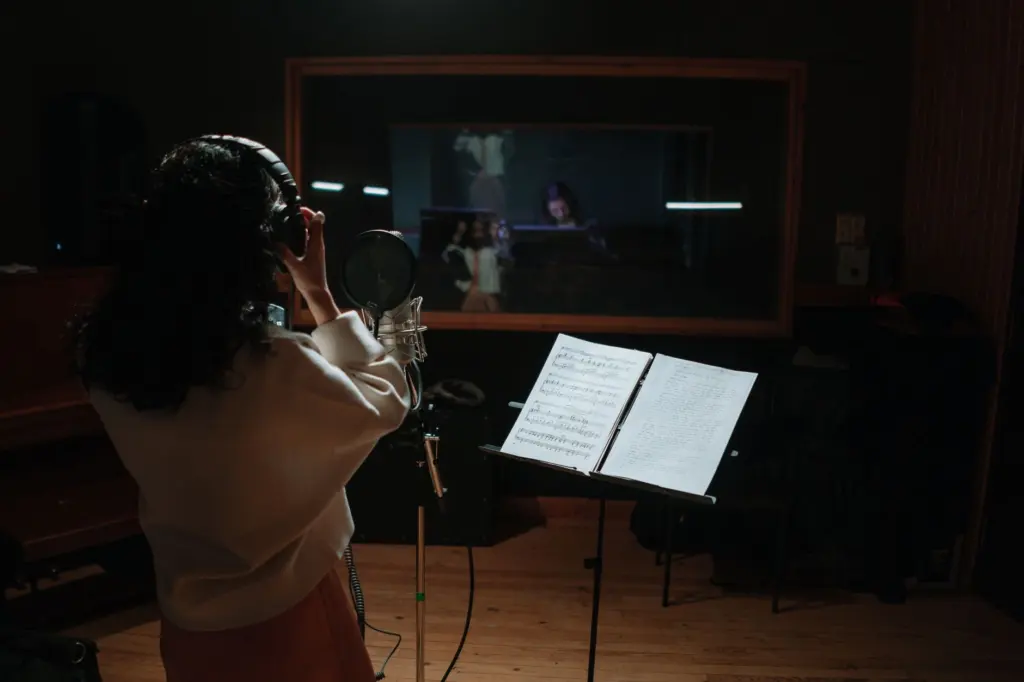
Filmora’s own guidance says that when you want to speak over a picture, you can record a voice clip and add it to the image. That makes it the clearest answer here to the question of which apps let you record your voice over a photo. It is a video editing app at heart, so expect a timeline-style workflow rather than a single record button.
It suits people who want to narrate and are prepared to learn a slightly fuller editor. It is less suited to someone who wants a ten-second job finished in one tap. Before committing to a long narration, run a short test export so you can see any watermark or limit that applies to your plan.
Filmora templates for several photos
When you have more than one photo, Filmora describes a pre-made template on its timeline that attaches an audio track to several photos at once. In practice this turns the app into a simple slideshow maker: you drop in the pictures, apply the template and let one track run underneath. It is a sensible route for an album, a trip recap or a birthday collection where a single soundtrack covers everything.
Adding music to photos on iPhone
iPhone users have a dedicated slideshow-with-music app in the iOS App Store, and it is the simplest route when music, rather than speech, is the goal.
Add Music To Video & Photo
The Apple listing describes an app for creating photo slideshows with background music, turning photos into video and merging music into that video. The saved videos can then be shared. This answers whether the app exports a video or keeps the photo separate: the output is a video.
The price model is free with in-app purchases. In the India store the subscriptions are listed at ₹499 weekly, ₹999 monthly and ₹1,999 yearly, and the listing states that the app contains advertising. Store prices vary by country, so check your own storefront before relying on those figures. The weekly option costs the most per period, so a casual user who wants one finished slideshow should be wary of leaving a weekly plan running after the job is done.
The listing also advertises a custom watermark feature. That is a tool for stamping your own mark on pictures, so it does not tell you whether free exports carry a mark. Export one short test slideshow before you build a long one.
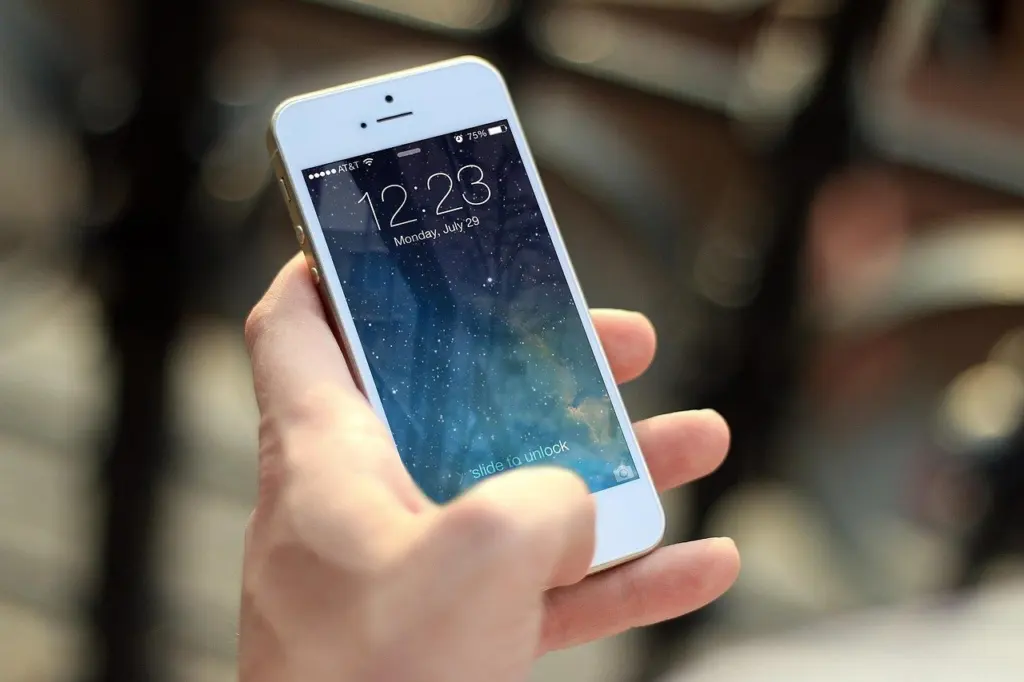
It requires iOS 15.0 or later and runs on iPhone and iPad. The listing names no Android version. If you want a step-by-step walkthrough using a phone, how to add sound to a photo on iphone covers the task from the iPhone side.
Checking a listing in the iOS App Store
Search the store for terms such as photo audio or add music to photo, then read the listing before you download anything. The details that decide suitability are all on the page: the price line, whether in-app purchases are listed, the advertising notice and the minimum iOS version. An older phone that cannot meet the minimum version will rule an app out immediately, which saves a wasted download.
Quick and free options for casual use
Free tools exist, but each one trades something away: audio control, a clean export or an ad-free screen. The right pick depends on which of those you can live without.
AddMusicToPhoto web tool
Filmora’s comparison describes the AddMusicToPhoto web tool as one that requires you to provide your own MP3 file and lacks audio tuning options. That comes from a competing editor’s page, so treat it as a description of the limits rather than an endorsement either way. For a casual user the trade-off is clear. You get speed, but you cannot trim, balance or fade the sound, and you must already have the audio file in hand. It does not record speech for you.
Free-tier limits to check
Whichever app you try, these are the points that decide whether the free version is enough:
- Advertising. The Add Music To Video & Photo listing states that the app contains advertising, so expect interruptions on the free tier.
- In-app purchases and subscriptions. A listing marked free with in-app purchases can still push you toward a paid plan for fuller features. Read the subscription line before you start a project you care about.
- Watermarks. Neither the Apple listing nor Filmora’s page states a free-tier watermark rule for the apps above, so a test export is the reliable check.
- Your own audio. The web tool needs an MP3 you supply, which is a hidden requirement if all you have is a voice memo idea.
- Computer-only features. Filmora’s Smart BGM, which generates background music from an image, is currently available only on the desktop version, so a phone-only user will not reach it.
On whether free apps can add sound to a picture at all: yes, the iPhone slideshow app is free to install and the web tool is a free route, and both come with the limits above. Filmora’s page also offers a free download of its desktop editor for macOS 10.14 or later.
Using Android, or more than one device
Cross-platform support is the weakest area for the single-purpose apps. The Apple listing for Add Music To Video & Photo names iPhone and iPad and no Android version, so it is not the pick for someone who changes between an iPhone and an Android phone.
Filmora is the better candidate for mixed devices. Its page describes cross-platform functionality for editing everywhere, with a mobile app plus a desktop editor. Its desktop version needs Windows 7 or later (64-bit) or macOS 10.14 or later. Search your own store for the Filmora mobile listing and confirm that it supports your phone, since the store page is the authority on device compatibility.
The practical advice for a household with different phones is to settle on one editor that also runs on a computer. A project started on one device is then easier to finish on another, and the desktop-only Smart BGM music generation becomes available too.
What each app outputs
The output decides what you can do next, so match it to where the picture will end up.
- A video file. Add Music To Video & Photo creates videos from photos and merges music into them, and the saved video can be shared. This suits posting or messaging, because a video plays with sound wherever you send it.
- A saved project. On desktop, Filmora’s instructions say to click Export to save your project. Use this route when you want to edit further or add narration as well as music.
- A photo with your own audio. The web tool starts from your picture and your MP3, so what you end up with is only as good as the file you supply.
If a particular platform needs a specific file type, check the export screen before you build a long project. Narration-style apps and slideshow-style apps both tend to produce a video rather than a photo with hidden sound, which is why a captioned video is usually the safest way to share.
Frequently asked questions
| Question | Answer |
|---|---|
| Which app suits someone who only wants music behind a few photos? | On iPhone, Add Music To Video & Photo is built for photo slideshows with background music, according to its App Store listing. |
| Can I record my voice rather than add music? | Yes. Filmora’s mobile workflow lets you record a voice clip and add it to the photo, as described on its guide page. |
| What does the iPhone app cost beyond the free download? | The India listing shows ₹499 weekly, ₹999 monthly and ₹1,999 yearly, and states that it contains advertising, per the Apple listing. |
| Does the web tool help if I have no audio file? | No. It needs your own MP3 and offers no audio tuning, according to Filmora’s comparison, so record or choose the sound first. |