For heic vs jpeg iphone, keep High Efficiency (HEIC) for everyday shooting. Switch to Most Compatible (JPEG) if you share with devices that struggle with HEIC. Use ProRAW only when you plan to edit heavily and can spare the storage.
The format is one small decision inside how to take better photos with your phone, but it affects storage, sharing and how far you can push an edit. The table gives the short comparison, and the sections below explain each choice.
| Format | Quality and file size | Editing headroom | Planning use |
|---|---|---|---|
| HEIC (High Efficiency) | Higher-quality images in smaller files than JPEG | Normal editing in a photo editing app | Best default for everyday iPhone photos |
| JPEG (Most Compatible) | The traditional format, with larger files than HEIC | Normal editing in a photo editing app | Choose it when compatibility matters more than storage |
| ProRAW (DNG) | One example gave 1.9MB for a HEIF file against 25.1MB for the DNG; some iPhone 15 Pro files exceed 30MB | Greatest: recover highlights and shadows, change white balance after capture | Choose it for photos you will edit extensively |
Format descriptions come from Absolute Geeks’ guide to iPhone file formats, and the file-size figures come from How-To Geek’s ProRAW test.
HEIC and JPEG on iPhone
HEIC is Apple’s preferred photo format, offering a balance of quality and efficiency. It lets higher-quality images be stored in smaller files than the traditional JPEG, according to Absolute Geeks. On an iPhone this is the High Efficiency setting, and it is why most iPhone photos are HEIC by default.
JPEG is the older format that nearly every phone, computer, website and app recognises. On the iPhone it sits behind the Most Compatible setting. The trade-off is simple. HEIC saves storage at equal or better quality, while JPEG avoids the occasional “cannot open this file” problem on older software.
Neither format is a quality upgrade you will notice in a casual snapshot. The decision is mostly about file size and where the photo needs to go next.
Switching iPhone photos to JPEG
Changing the capture format takes a few taps, and it controls what the camera saves from then on.
- Open Settings and tap Camera.
- Tap Formats to see the capture options.
- Choose Most Compatible to shoot JPEG, or High Efficiency to return to HEIC.
Switch only if you have a reason. Because HEIC produces smaller files than JPEG, Most Compatible will use more storage for the same number of photos. People who rarely send originals to older computers or unusual apps lose little by staying on High Efficiency.
ProRAW: what it is and who needs it
Apple ProRAW captures a true RAW DNG (digital negative) file from the iPhone’s sensor, as How-To Geek explains. Apple introduced ProRAW capture on the iPhone 12, and it is primarily available on Pro models. Because the file is a standard DNG, professional editing software can open it.
It suits people who intend to edit extensively, a point Absolute Geeks also makes when it recommends ProRAW for heavy editing and HEIC for everyday use. If you post photos straight from the camera roll, ProRAW adds storage cost without a visible benefit.
On the iPhone 15 Pro and iPhone 16 Pro, ProRAW can deliver images of up to 48MP, instead of the 12MP or 24MP of other capture modes. That extra detail matters mainly for cropping and large prints. ProRAW is also a deliberate choice rather than a default, so reserve it for scenes worth the extra work.
Does RAW give better quality than HEIC or JPEG?
RAW gives more editing flexibility, not a better-looking photo straight from the camera. Because ProRAW keeps more information from the sensor, you can recover highlights and shadows with greater dynamic range. You can also change the white balance after the shot, which is awkward to fix once a HEIC or JPEG has been processed.
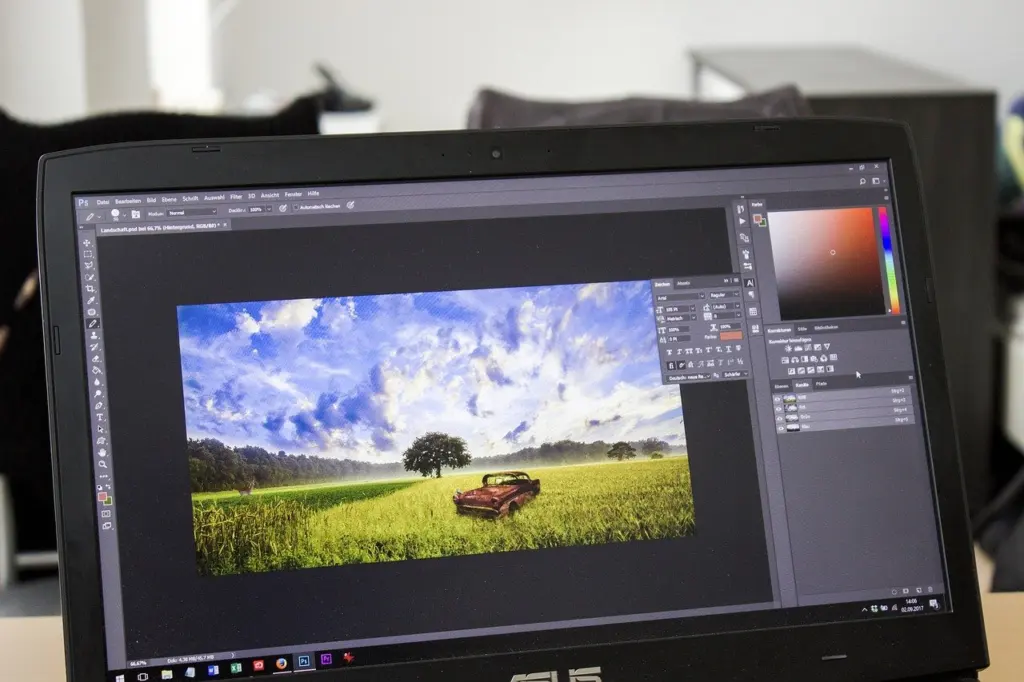
You need a photo editing app to benefit. How-To Geek lists Adobe Lightroom Mobile, Darkroom and VSCO on a phone, and Lightroom Classic, Photoshop and Capture One on a computer. These apps can edit RAW files as well as ordinary HEIC and JPEG photos.
For tripod-based scenes where you control the light and have time to edit, the extra latitude is worth having. Our guide to the best tripod for phone photography covers the gear that suits that slower style of shooting.
How much storage the formats use
HEIC files are smaller than JPEG at comparable quality, and ProRAW files are far larger than either. Absolute Geeks describes HEIC’s advantage only in qualitative terms, so treat it as a saving rather than a fixed ratio.
For ProRAW, How-To Geek measured a fence photo at 1.9MB as a HEIF file and 25.1MB as a DNG, more than 10 times larger. Some RAW photos from an iPhone 15 Pro reach upward of 30MB or more. These are single examples, and your own files will vary with the scene and the camera mode.

The practical rule is to shoot ProRAW selectively. A camera roll full of 25.1MB files fills storage quickly, while the same shots in HEIC would stay small.
Sharing photos and opening HEIC on Windows
Compatibility is the main reason to choose JPEG. If you often move photos to a Windows PC or send them to people whose software cannot open HEIC, setting the iPhone to Most Compatible removes the problem at the source.
For HEIC photos you already have, open them in an editing app that handles HEIC, such as the Lightroom, Photoshop or Capture One programs on a computer. From there you can export the picture as a JPEG for anyone who needs that format. Keep the HEIC original too, since it holds the same image in a smaller file.
Which format to choose
- Everyday and social photos: stay on High Efficiency. The files are smaller, and quick portraits and how to take better selfies rarely need more than HEIC offers.
- Mixed-device households or workplaces: use Most Compatible if photos regularly land on computers or apps that reject HEIC.
- Planned shoots you will edit: use ProRAW on a supported Pro model, and expect to spend time in an editing app.
- Limited storage: avoid ProRAW as a default, since its files are many times larger than HEIC.
You can mix formats freely. Shoot HEIC most of the time and switch to ProRAW for the few scenes where editing headroom is worth the file size.
Frequently asked questions
Does ProRAW always capture 48MP?
No. How-To Geek notes that the iPhone 15 Pro and iPhone 16 Pro can deliver up to 48MP in ProRAW, but the device’s own processing may still choose 12MP for a given shot.
Why does a ProRAW photo look flat straight after capture?
ProRAW applies no post-processing, so an image can look more washed out at first than the same shot in HEIC. It is meant to be edited before you share it.
Does ProRAW work with Live Photos?
No. Capturing in ProRAW effectively disables Live Photos for that image, so choose the format before the shot if motion matters.
Will a message keep the original photo quality?
Not necessarily. iMessage compresses images based on their size and your network connection, so the person receiving it may not get an identical-quality file, according to a MacRumors forum discussion.