
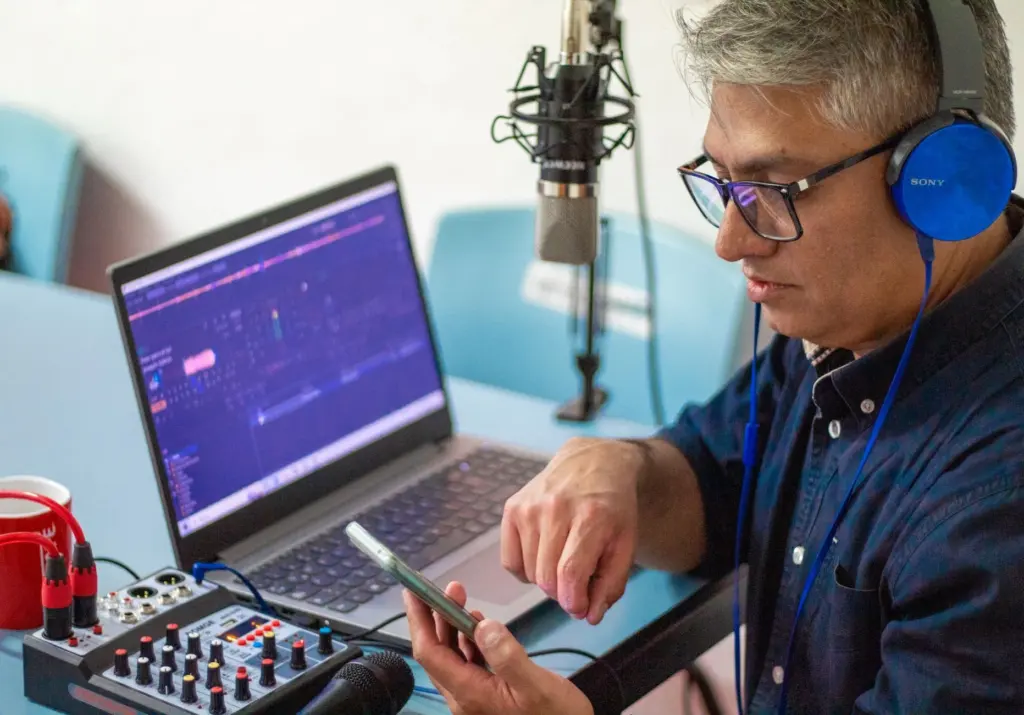
To add sound to photos, record or choose an audio clip and combine it with the picture in an editor that exports an MP4 video. A JPEG cannot carry the sound itself, so the video file is what you share.
The hub on photos with sound covers the wider picture. This guide follows one photo and one recording from capture to a file that still plays when someone opens it.
Why a photo needs a video container to carry sound
A JPEG is a still-image format with no place to put an audio track. The U.S. Copyright Office’s list of accepted file types shows the split: .jpg, .jpeg and .jfif sit under image types, while .mp4 and .m4v sit under video container formats. Sound belongs to the second group.
Tool makers say the same thing in practical terms. Echowave notes that JPG, PNG, WebP and HEIC files have no audio stream inside them, so the sound needs a container, and that the container is a video, almost always an MP4. Kapwing describes the same result: the picture turns into a video once the audio has a duration.
What the exported file looks like
The finished file is usually an MP4 in which the photo stays on screen for the full length of the track, as Pi7 and Echowave both describe. Pi7 states its output uses H.264 video and AAC audio, with the audio always AAC inside the MP4 container. Treat that as one common recipe rather than a universal rule, but it is a sensible target if an editor lets you choose.
The practical consequence is simple. The length of your recording sets the length of the video, so a short, deliberate clip works better than a long one that leaves a still image on screen with nothing happening.
The main ways to add sound to a photo
Uploading an audio file you already have, or choosing a track from a library. All three end in the same kind of video file.
- Record a voiceover. Echowave lets you record directly in the tool. This suits a spoken caption, a greeting or a short description of the scene.
- Upload a recording you already have. A voice memo or other clip works if it is in a format the tool accepts. Echowave takes MP3, WAV or M4A, and Pi7 accepts MP3, WAV, M4A, AAC, OGG, FLAC and OPUS.
- Pick a library track. Echowave also offers a royalty-free library, which suits ambience or music where speech is not the point.
- Build it on a timeline. Kapwing places the audio and the image on a timeline, which helps when you want to trim the sound or line it up against the picture.
Whichever route you take, check that your recording is saved as one of the accepted audio types before you upload it. Converting first costs less time than a failed import.
From photo to finished file
The workflow has three stages: take the photo, capture the sound, then combine and export. Doing them in that order keeps the picture independent of the recording, so you can redo either without starting over.
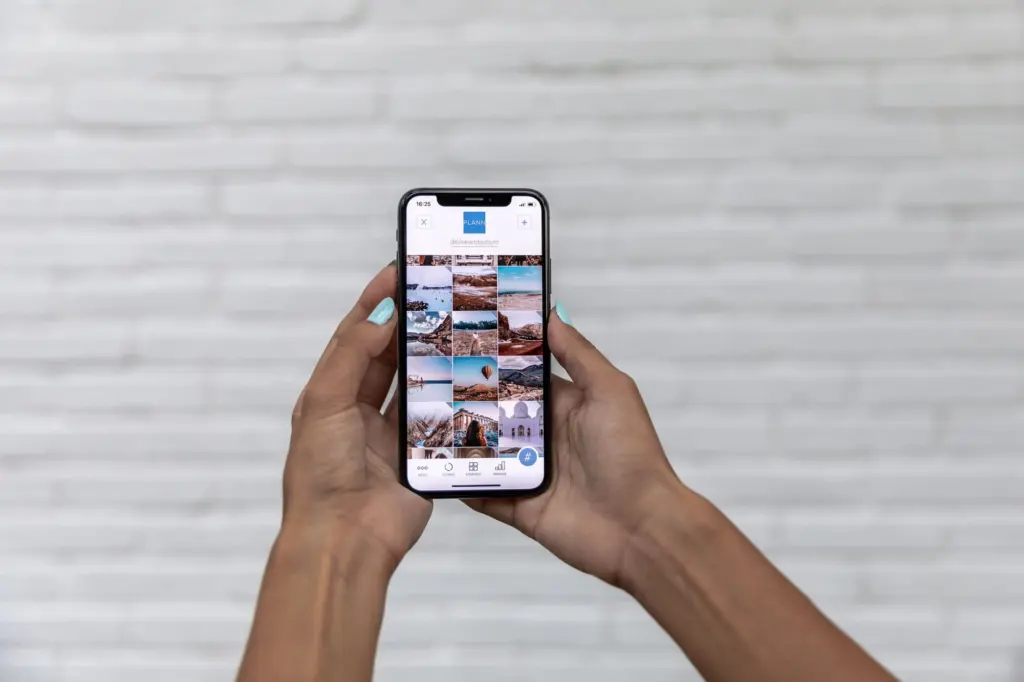
Capture the photo
Take the picture with your smartphone camera first, and frame it for where it will end up. Echowave advises choosing a canvas to match the platform, and a vertical shot suits the vertical formats covered below.
Record the sound
Record in a quiet spot with a voice memo app, or use the recorder built into your editing tool. Decide the length before you start, because the photo will stay on screen for the whole track.
Combine and export
Open an editor or converter and follow its order of operations. Add Music to Photo, for example, asks you to select the image, then the MP3, and then click Create Video. Kapwing builds a timeline holding both, and you can then download the result to your device. Keep the exported MP4 as your master copy and send or post copies of it.
Choosing a video export or an in-app sound option
Export an MP4 when the photo with sound needs to travel to more than one place. Use an app’s own sound feature only when you are posting to that one app and nowhere else.
- Video export suits several destinations. An MP4 is a file you can download, store and send to a messaging app or post to a social platform. Pi7 describes its output as ready to share anywhere.
- An in-app option suits a single post. If the app you are posting to lets you attach sound while composing, you skip the export step. The trade-off is that you do not end up with a standalone file to reuse.
- Wait before exporting if the platform is undecided. The canvas shape and length limits differ by platform, so choosing the destination first avoids re-exporting.
Sharing so the audio still plays
Share the MP4, not the original photo, and fit it to the platform’s shape and length. Echowave states that a photo with music only works if the platform accepts the file, so the limits below decide whether your sound survives.
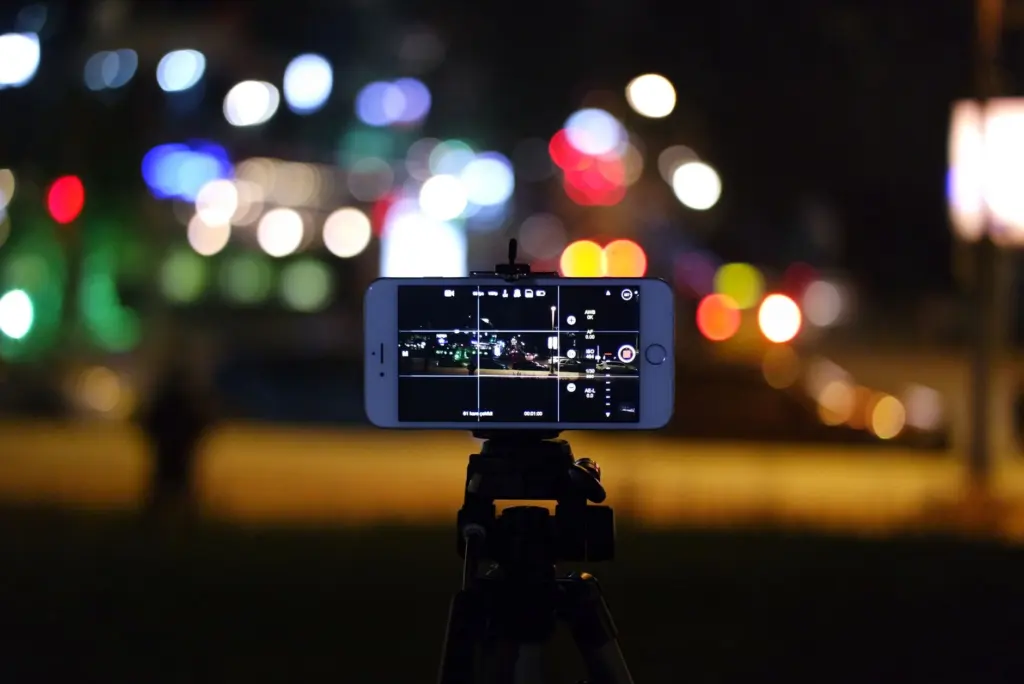
On shape, Echowave suggests choosing 9:16 vertical, 1:1 square or 16:9 widescreen to match the platform. Pi7 specifically advises 9:16 portrait for Instagram Stories, TikTok and Reels.
| Destination | Length limit | Planning use |
|---|---|---|
| Instagram Reels | 3 min | Comfortable for a voiceover with room to speak. |
| Instagram Stories | 60 s per card; longer videos split into cards | Keep one clip to one card so the sound is not cut mid-sentence. |
| TikTok | 10 min maximum; keep mobile uploads under 287 MB | The length is a ceiling, and file size is the more likely snag on a phone. |
| YouTube Shorts | 3 min | Suits a vertical photo with a short spoken note. |
| WhatsApp Status | 90 s; keep the file under 16 MB | Suits quick personal shares; check file size before posting. |
| YouTube (16:9) | Up to 12 hours | Fits a widescreen export or a long recording. |
These limits come from Echowave’s platform size guide.
A maximum is not a target. Pi7 suggests keeping Instagram Stories and TikTok videos under 60 seconds, which is a far shorter aim than TikTok’s own ceiling. For a single photo, a short clip holds attention better than filling the allowance.
If you would rather not send a file at all, Kapwing lets you share through the project’s link as well as downloading the video.
Why audio disappears on some platforms
Sound goes missing when the file you share is not the video with the audio track, or when the platform does not accept what you uploaded. Echowave puts the rule plainly: the photo with music only works if the platform accepts the file.
Work through these checks when sound is missing:
- Confirm you shared the video. The original JPEG or HEIC has no audio stream, so posting it as a picture can never carry sound.
- Check the length. Echowave notes that Story videos longer than the per-card limit are split into cards, which can break a spoken clip across pieces.
- Check the file size. Limits such as the under 16 MB guidance for WhatsApp Status and under 287 MB for TikTok mobile uploads are worth meeting before you post.
- Re-export to the right shape. If the platform wants vertical video, export on a 9:16 canvas rather than relying on it to adapt a square or widescreen file.
If a platform still drops the sound, fall back to a method that does not depend on its upload rules, such as sending the MP4 directly through a messaging app or sharing a project link.
What the recipient experiences
Someone who opens your file sees a photo held on screen while the audio plays from start to finish. The recording sets the viewing time, so a recipient listening on earbuds or a speaker is in effect watching a short video.

Before you send it, play the exported MP4 through once on your own phone. Confirm the voice or music starts where you expect and that the photo still looks right in the frame you chose.
Frequently asked questions
Can I use an iPhone HEIC photo without converting it?
Yes, in tools that accept it. Echowave says you can upload straight from your camera roll and HEIC photos work without conversion.
Can I combine several photos with one soundtrack?
Some tools can. Pi7 accepts 1 to 20 images in JPG, PNG, WebP, GIF or BMP, though a single photo simply holds for the full length of the song.
Is there a size limit when I upload a photo and audio to a converter?
It depends on the tool. Add Music to Photo, for example, caps the image at 25 MB and the MP3 at 100 MB.
Can I share the result without sending the video file itself?
In some editors, yes. Kapwing lets you download the video to your device or use the project’s link to share it.